
Edit every Flow into a polished guide
Refine titles, step descriptions, screenshots, headings, notes, cover images, and order in one workspace. Turn raw captures into structured documentation for training, SOPs, support, and reuse.
Refine every part of the Flow
A captured Flow is only the first draft. Use the document editor to adjust step order, rewrite instructions, improve screenshots, add structure, and prepare the guide for training, SOPs, help centers, and customer handoff.
A basic list of captured steps
Add headings, sections, tips, warnings, and outline navigation
Steps follow the recording sequence
Reorder, remove, insert, or continue recording from any point
Short action-based step text
Rewrite titles and descriptions, add context, links, tables, and AI writing
One screenshot is tied to each step
Crop, replace, annotate, blur, and add image descriptions
URLs and page context are saved
Keep, filter, or update sources so readers know where each step happens
A default screenshot is used
Choose a cover image and preview the guide before sharing or export
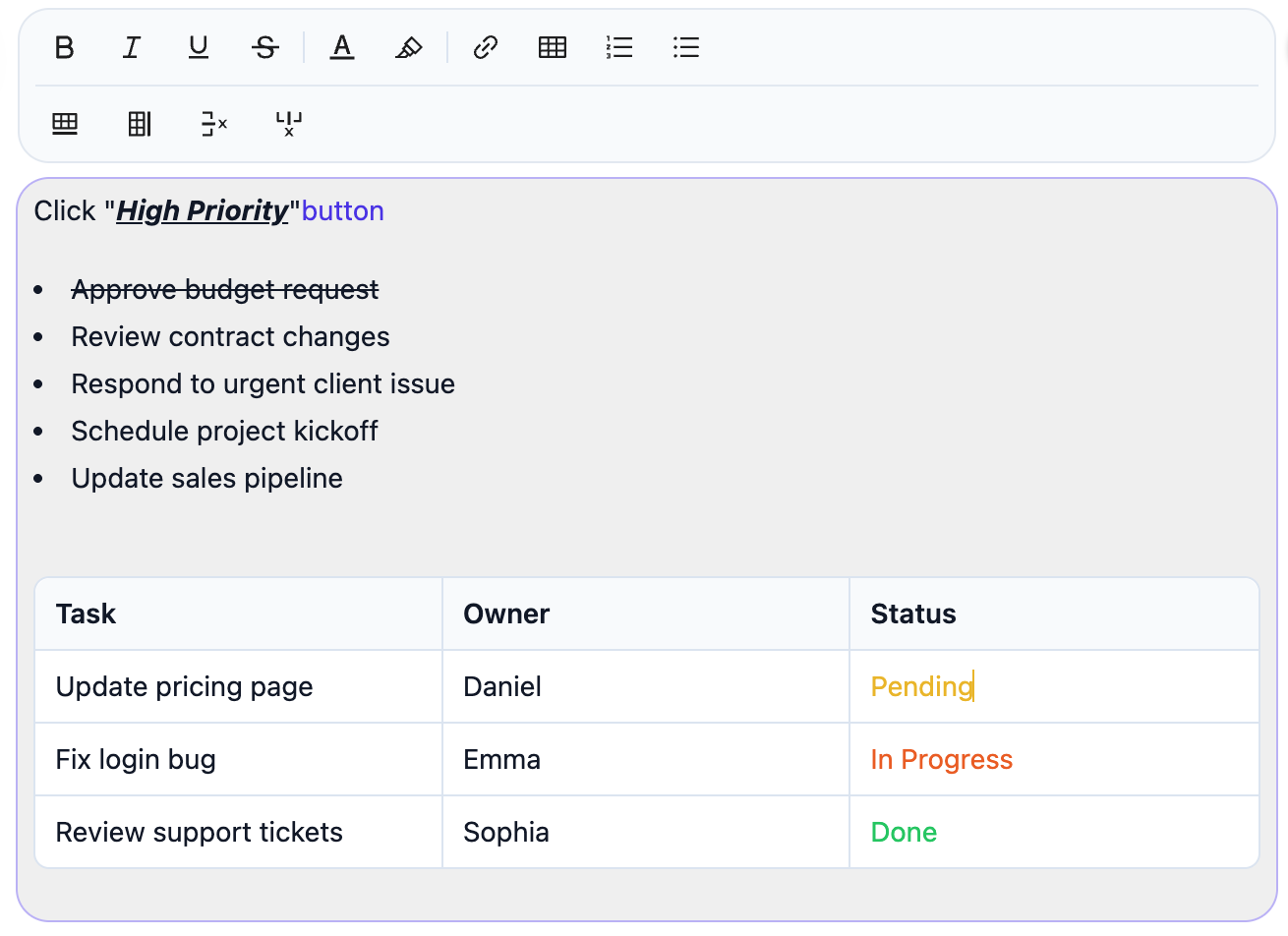
Edit every step
Rewrite step titles and descriptions, add lists, tables, links, highlights, and notes to make each instruction easier to follow.

Organize every Flow
Add headings, sections, and outlines to turn long workflows into clear, scannable guides.
Edit workflow guides like real documents
Headings, tips, alerts, steps, screenshots, and notes can all be edited in the same Flow editor. Add structure, insert new content, reorder steps, and keep the outline updated as the guide evolves.
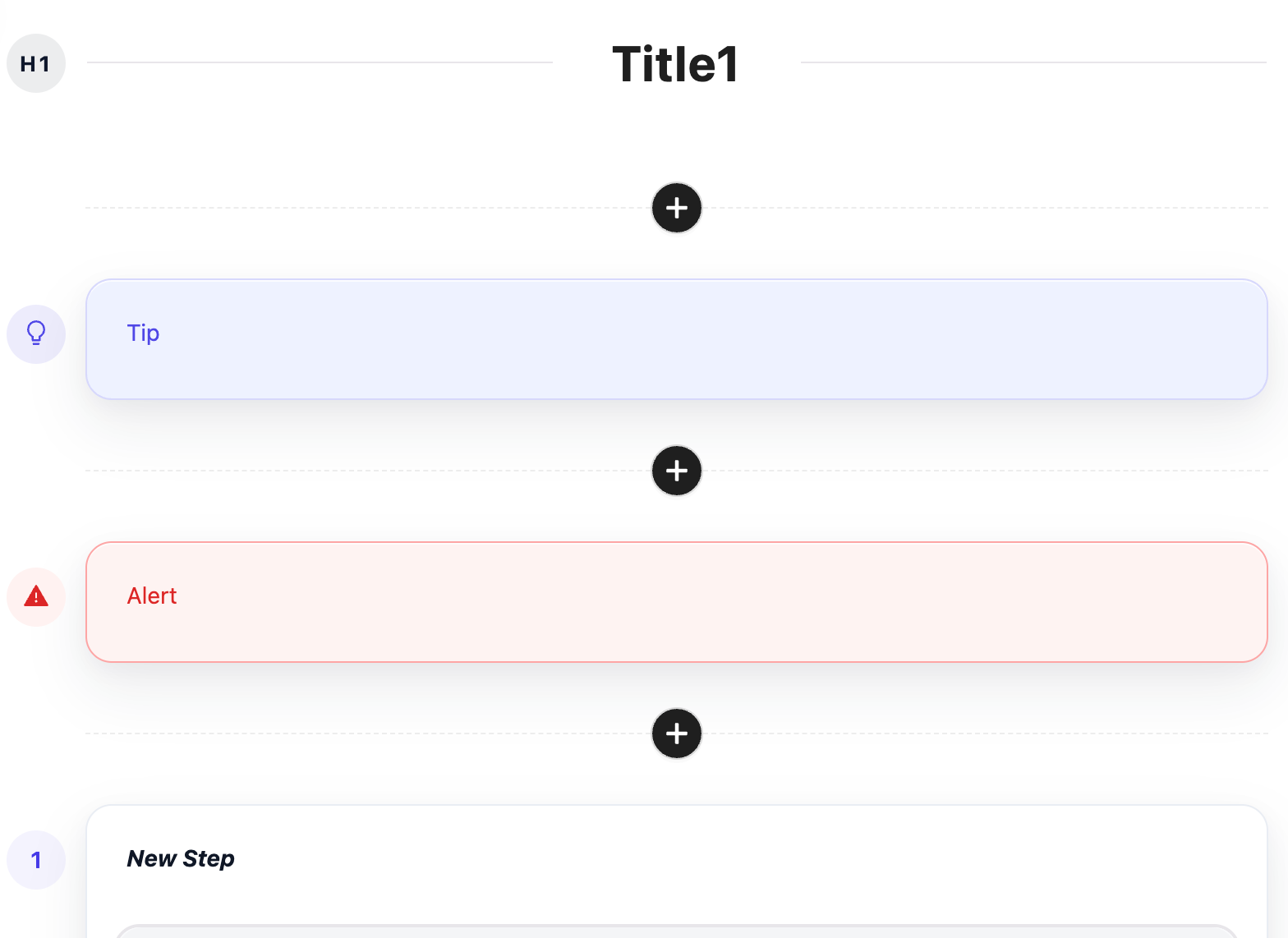
See the document structure at a glance
Headings, tips, alerts, and captured steps are organized in one editor, so you can review the full guide before making changes.
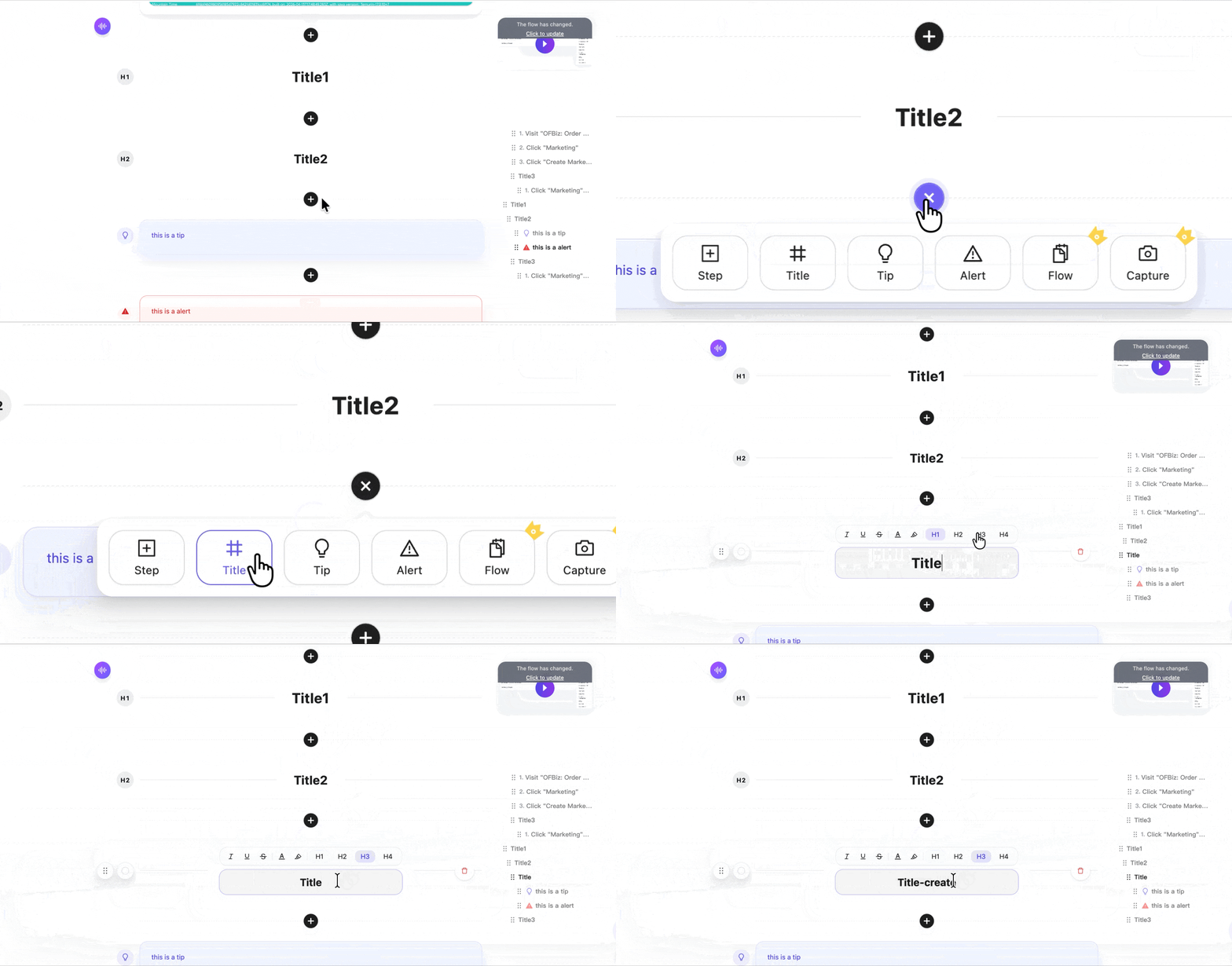
Add headings and notes anywhere
Insert H1 and H2 headings, tips, alerts, or note blocks to split long workflows into clear, readable sections.
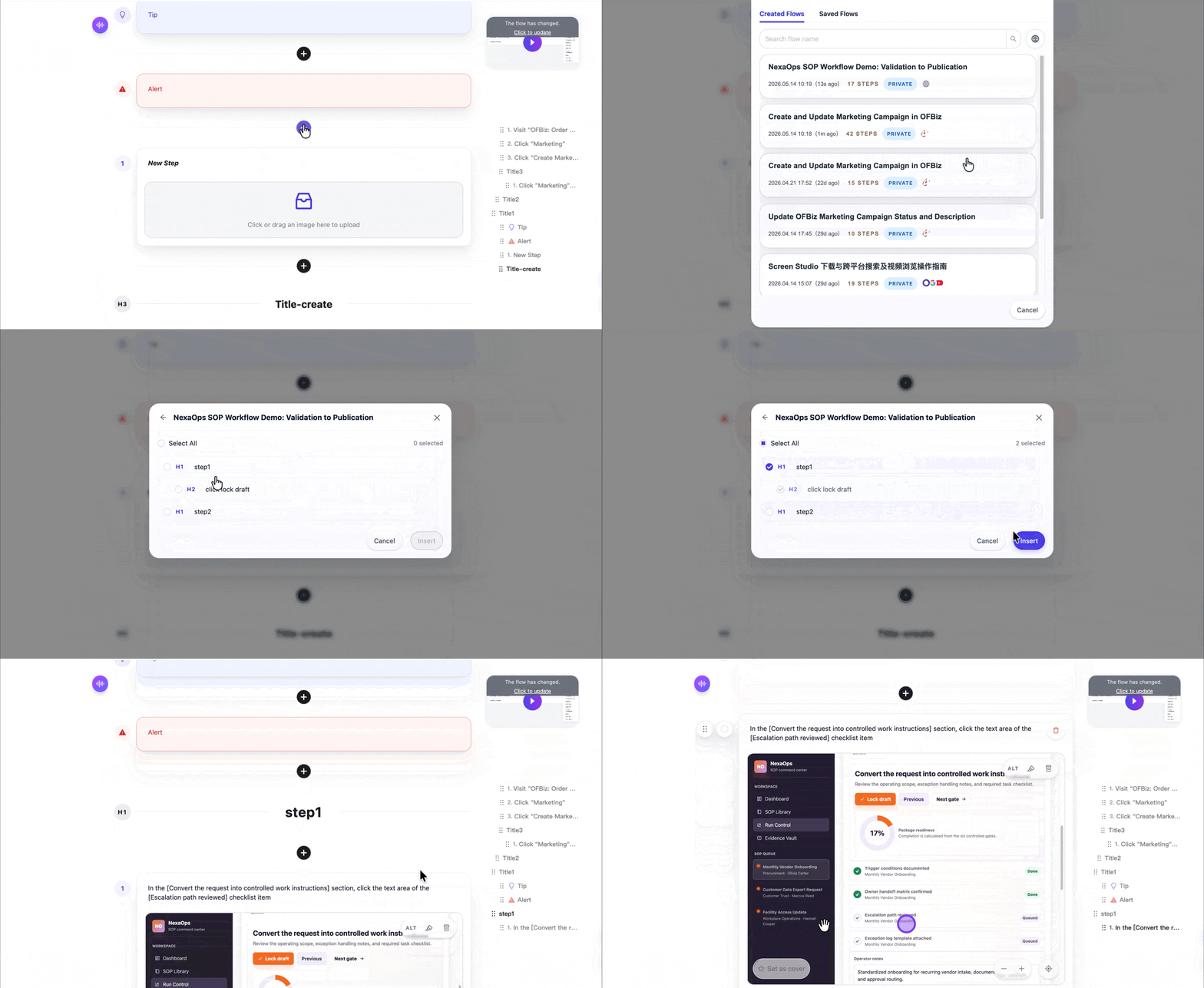
Insert new steps or Flow sections
Add new steps, notes, screenshots, or another Flow section directly inside the current guide and place it exactly where it belongs.
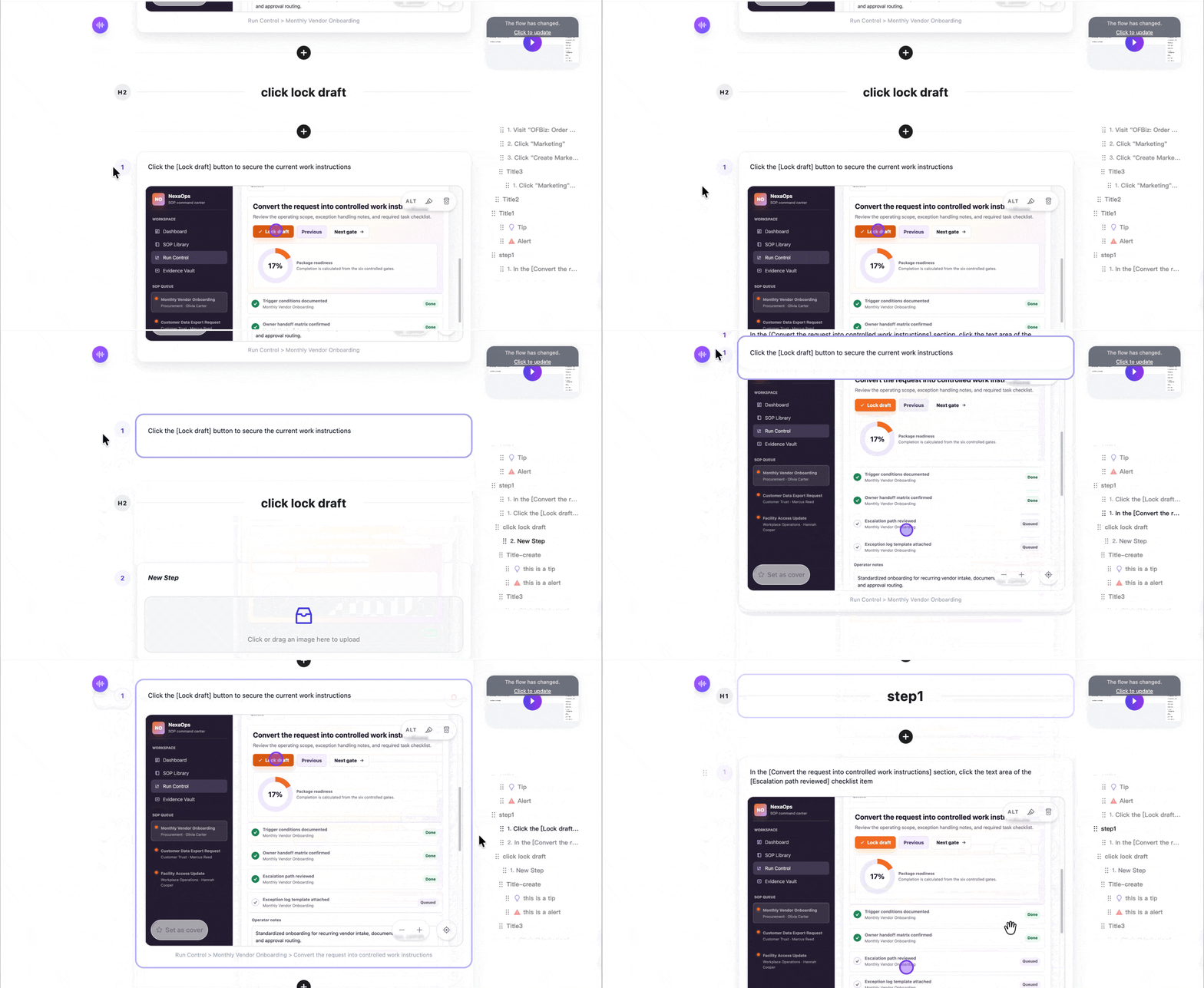
Drag to reorder the guide
Move headings and steps into the right order, while the outline updates automatically with the document structure.
Review the captured draft
Start from the auto-generated Flow and check the steps, screenshots, notes, and overall document structure.
Add headings and sections
Use H1 and H2 headings, tips, alerts, and note blocks to split long workflows into clear chapters.
Refine step writing
Rewrite step titles and descriptions, add business context, links, tables, warnings, and extra notes.
Polish step visuals
Crop, replace, annotate, blur, or add image descriptions so each screenshot explains the action clearly.
Reorder and preview
Drag steps and headings into the right order, review the outline, then prepare the Flow for sharing or export.