Screen recording to Flow
Record desktop or cross-app work, then upload the video for parsing.
Use it for workflows the browser extension cannot capture directly.
Start screen recording from the web app or extension
The same recording path has two entry points:
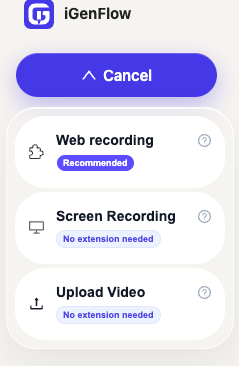
choose Screen Recording from the web app,
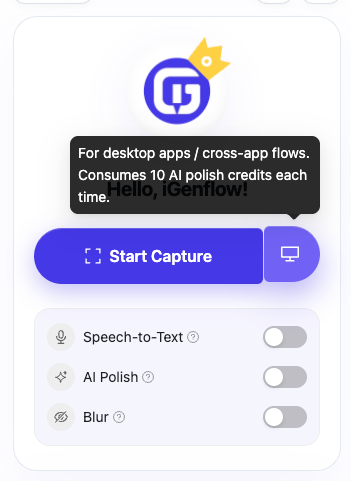
or use the screen button beside Start Capture in the extension.
Screen recording steps
Choose the screen recording entry
Start screen recording from the web app, or use the extension screen button to convert a screen recording into a Flow.
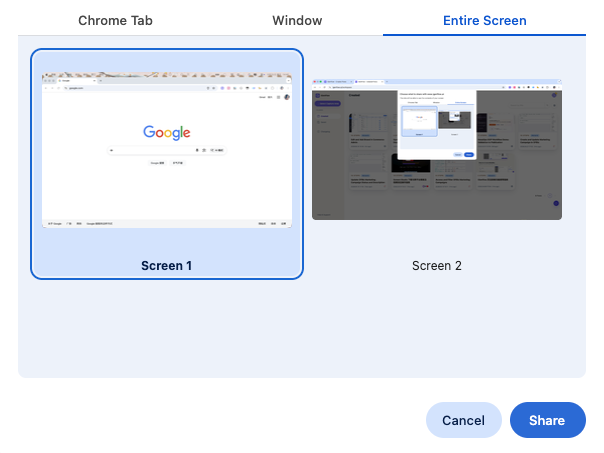
Select the screen or window to record
Use the browser picker to select an entire screen, a specific window, or a tab for desktop and cross-app workflows.
Finish recording and upload the video
When the operation is complete, finish the screen recording and upload the captured video for parsing.
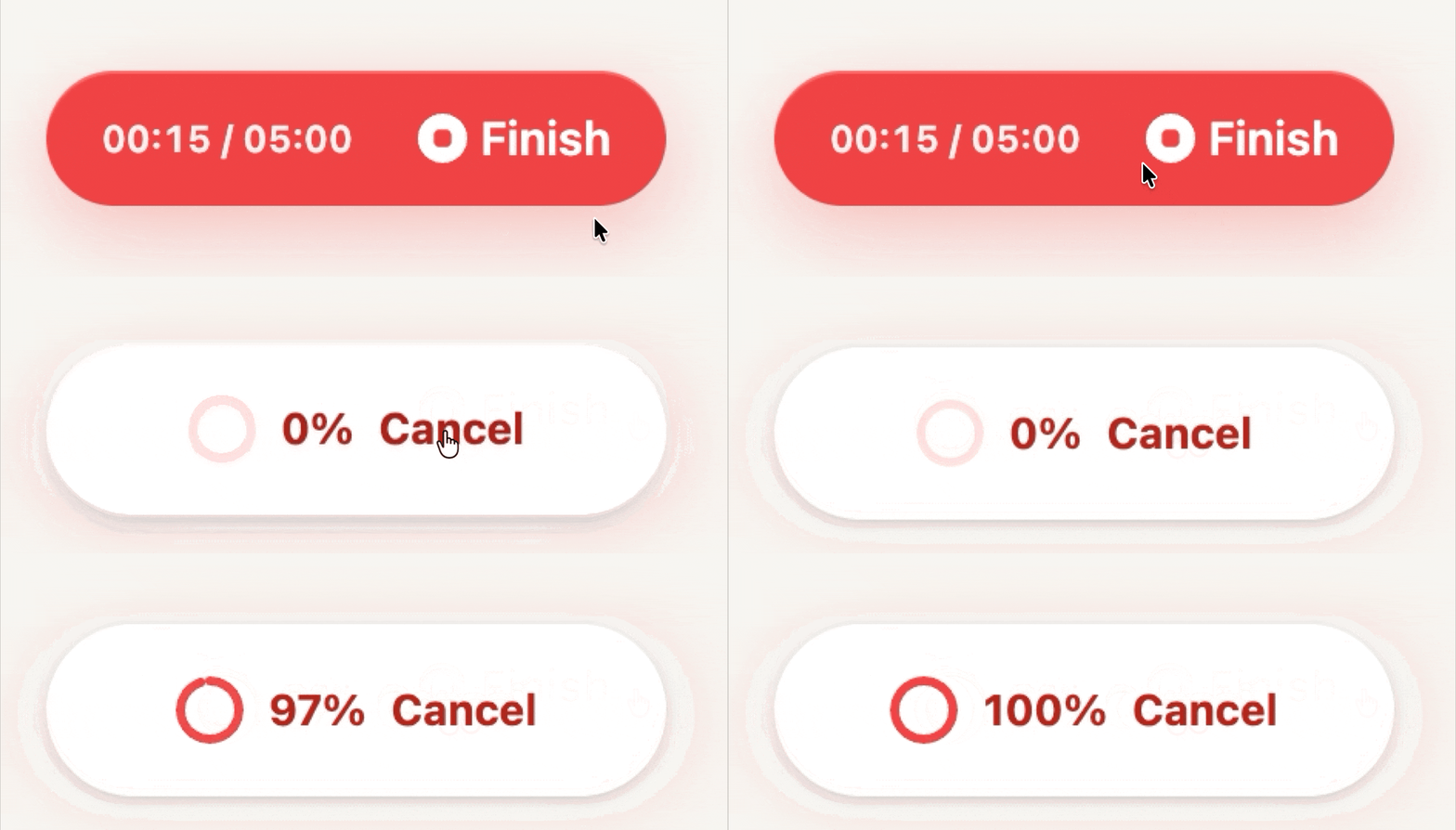
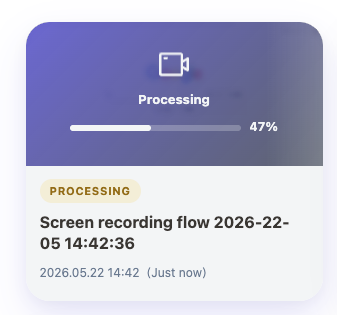
Wait while the recording is parsed
After upload, the Flow enters processing. The system parses the video into key frames and workflow structure.
Use the generated readable Flow
After parsing finishes, users can read, edit, annotate, share, or export the Flow like any normal workflow document.
Operations outside the browser can become workflow documents
For desktop software, mobile apps, mini programs, and cross-system operations, record the full process with system screen recording first, then upload it to iGenflow. AI identifies key actions, splits the video into steps, extracts key frames, and generates an editable visual workflow document.
Supports parsing: Windows / macOS desktop recordings, iOS / Android mobile recordings, mini programs, and cross-app operation videos
Record first, then upload
Use system screen recording or mobile screen recording to capture the full operation, then upload it to the parsing queue.
Cover scenes the extension cannot capture
Desktop software, mobile apps, mini programs, and cross-app workflows can also be converted from video into operation documents.
Split steps and key frames automatically
AI detects valid actions from visual changes, splits them into steps, and extracts a representative screenshot for each step.
Generate an editable workflow document
After parsing, view, edit, export, and share it like any normal Flow for training, SOPs, and delivery.