Turn screenshots into instruction-ready visuals
Mark up, crop, blur, spotlight, and magnify step screenshots without leaving the Flow.
Pending order 3812
Risk check passed
Customer details hidden
Shipping step pending
Pending order 3812
Risk check passed
Customer details hidden
Shipping step pending
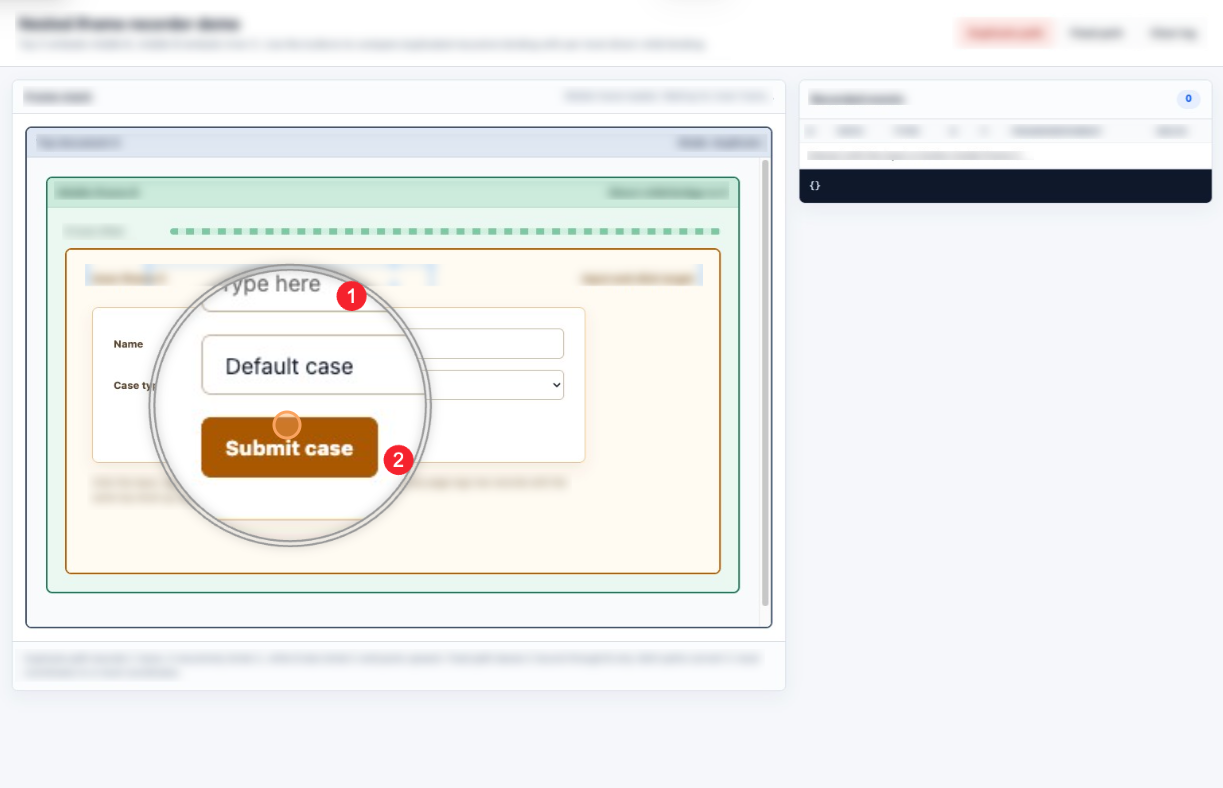
Buttons, fields, and hints are enlarged together
Edit screenshots without leaving the Flow
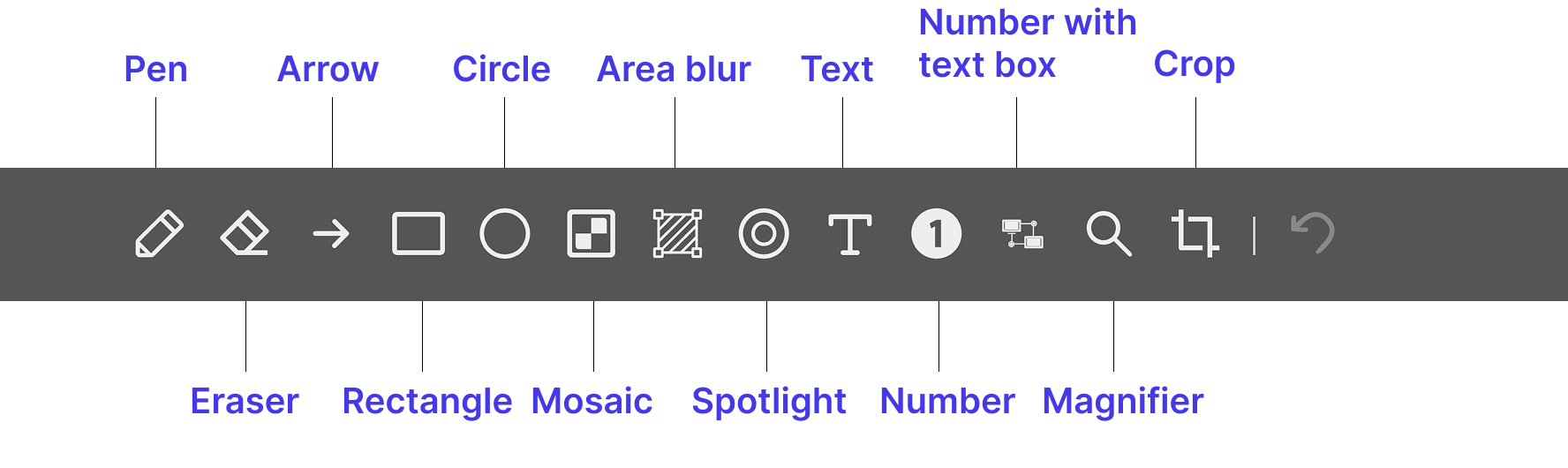
Every captured screenshot can be refined inside iGenflow. Add arrows, boxes, labels, step numbers, magnifiers, spotlight effects, crop frames, and blur or mosaic masks to turn raw captures into clean training visuals.
Protect sensitive data before sharing
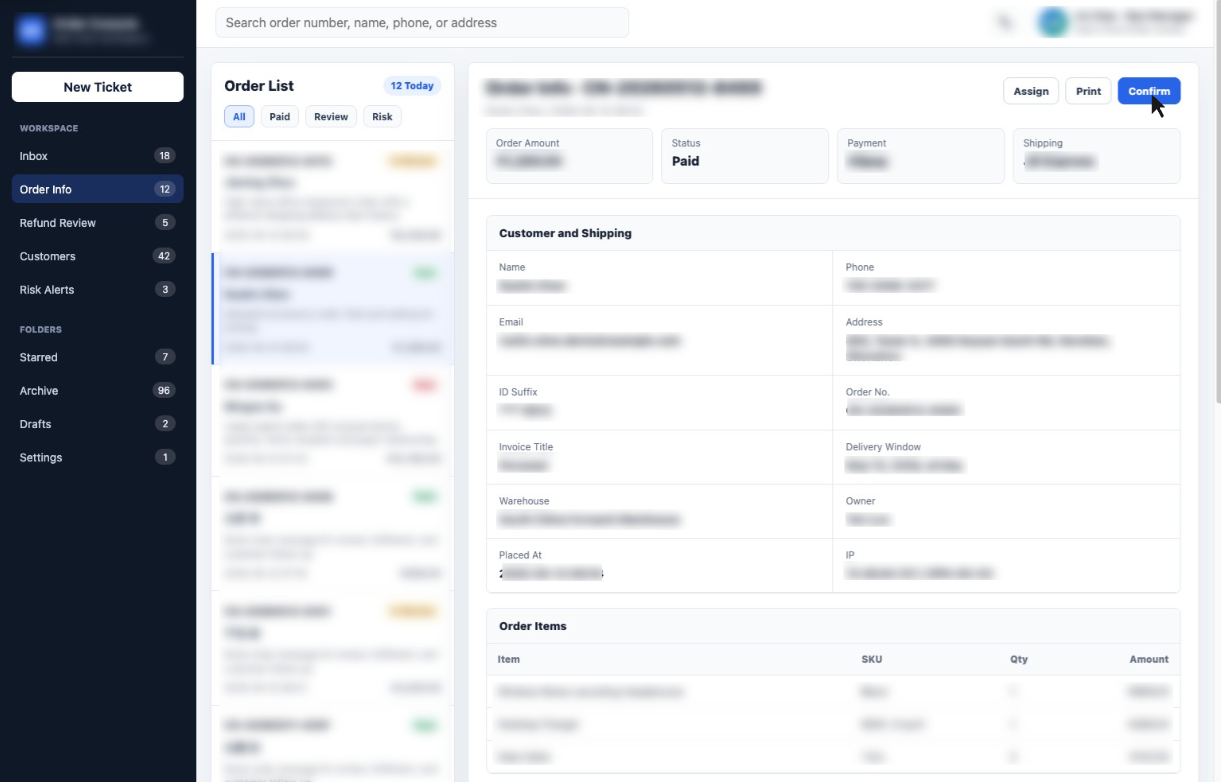
Blur, mask, or mosaic private fields during capture or in the editor. Protected images stay protected in shared links, PDF, Word, PPT, HTML, image exports, and walkthrough videos.
Every screenshot can become an instruction visual
Mark key operation targets
Use arrows, boxes, text, and step numbers to mark buttons, menus, fields, and status areas so readers know where to look and click.
Highlight important areas in complex pages
Use magnifier and spotlight effects to call out key content in large screenshots and reduce the effort of finding it.
Hide sensitive information
Blur, mask, or mosaic phone numbers, order IDs, customer records, account fields, and other private content before sharing.
Add image notes and operation hints
Add short notes, cautions, and step hints directly on screenshots so raw captures become clear training and delivery visuals.
Choose a screenshot from any step and open it in the built-in image editor.
Use arrows, boxes, text, and numbers to mark buttons, menus, fields, and operation targets.
Apply magnifier, spotlight, or crop effects to make important parts easier to notice.
Blur, mosaic, or cover customer information, order IDs, account fields, and private data.
Save the edited image as the step visual for workflow reading, training materials, and delivery documents.