Talk through the workflow. AI turns it into clear steps.
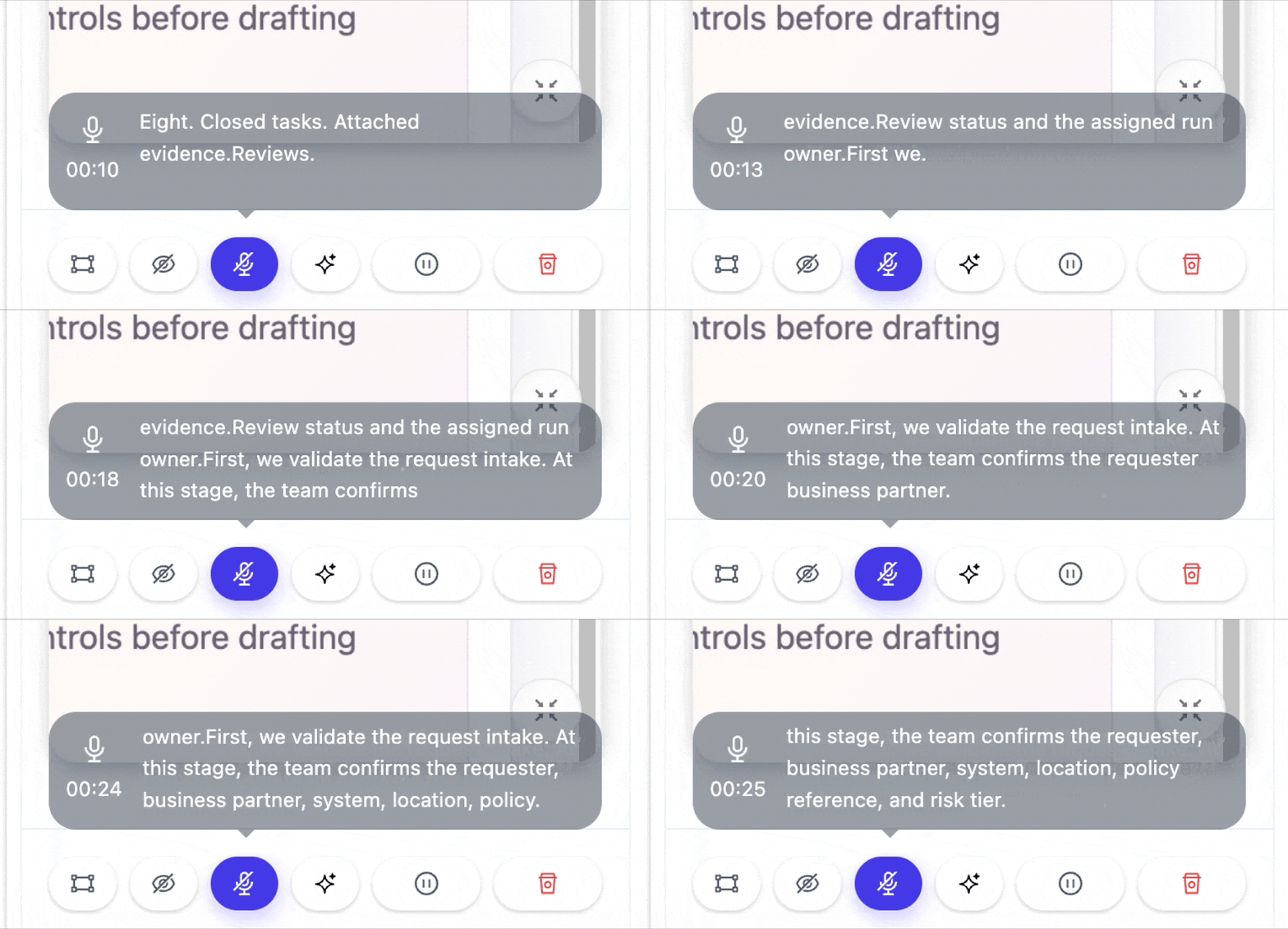
Speak while you capture. iGenflow transcribes your narration, connects it with clicks, screenshots, and page context, then helps generate clearer step titles and instructions.

Your voice notes, clicks, screenshots, and AI-written instructions stay connected in the same Flow.
Speech recognition for workflow narration
Explain the workflow as you capture. iGenflow transcribes your narration and keeps it aligned with the right screenshots, actions, and step context inside the Flow.
- Transcribe narration while capturing
- Match speech with screenshots and steps
- Use narration as context for AI writing
AI writing turns rough steps into clear instructions
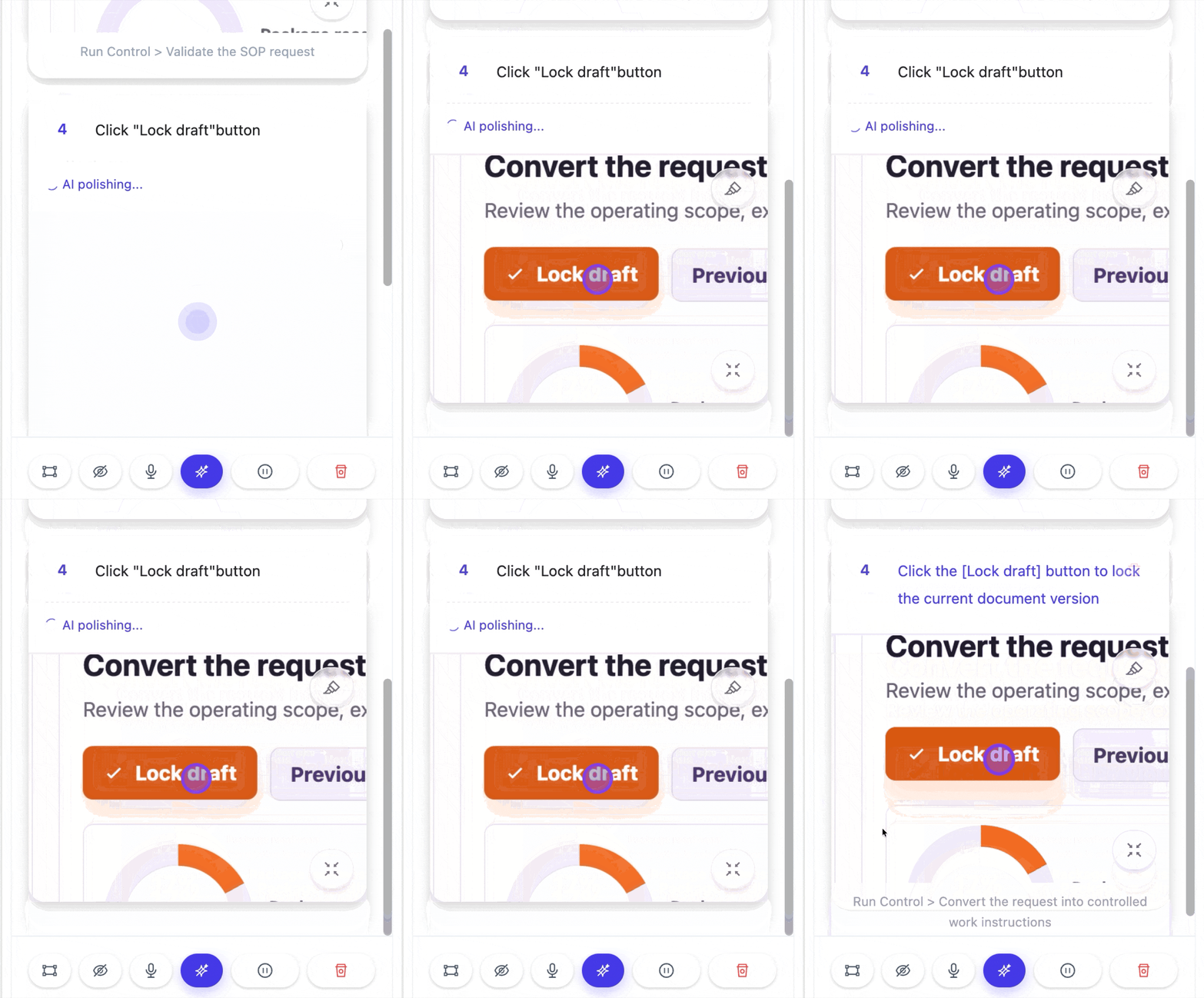
iGenflow uses captured actions, screenshots, cursor positions, page context, and optional narration to rewrite short action records into clearer, publish-ready step instructions.
- Use captured actions as writing context
- Reference screenshots and page context
- Rewrite rough steps into clear instructions
Click “Lock draft” button
Click “Lock draft” to confirm the draft is ready for stakeholder review.
From rough actions to polished instructions
Click “Lock draft”
Click the “tasks” link
Drag and drop here
Click “Lock draft” to mark the draft as ready for review.
Click the “tasks” link to open the related task list.
Drag the file into the upload area to add supporting evidence.
Keep speech, screenshots, and AI-polished steps together
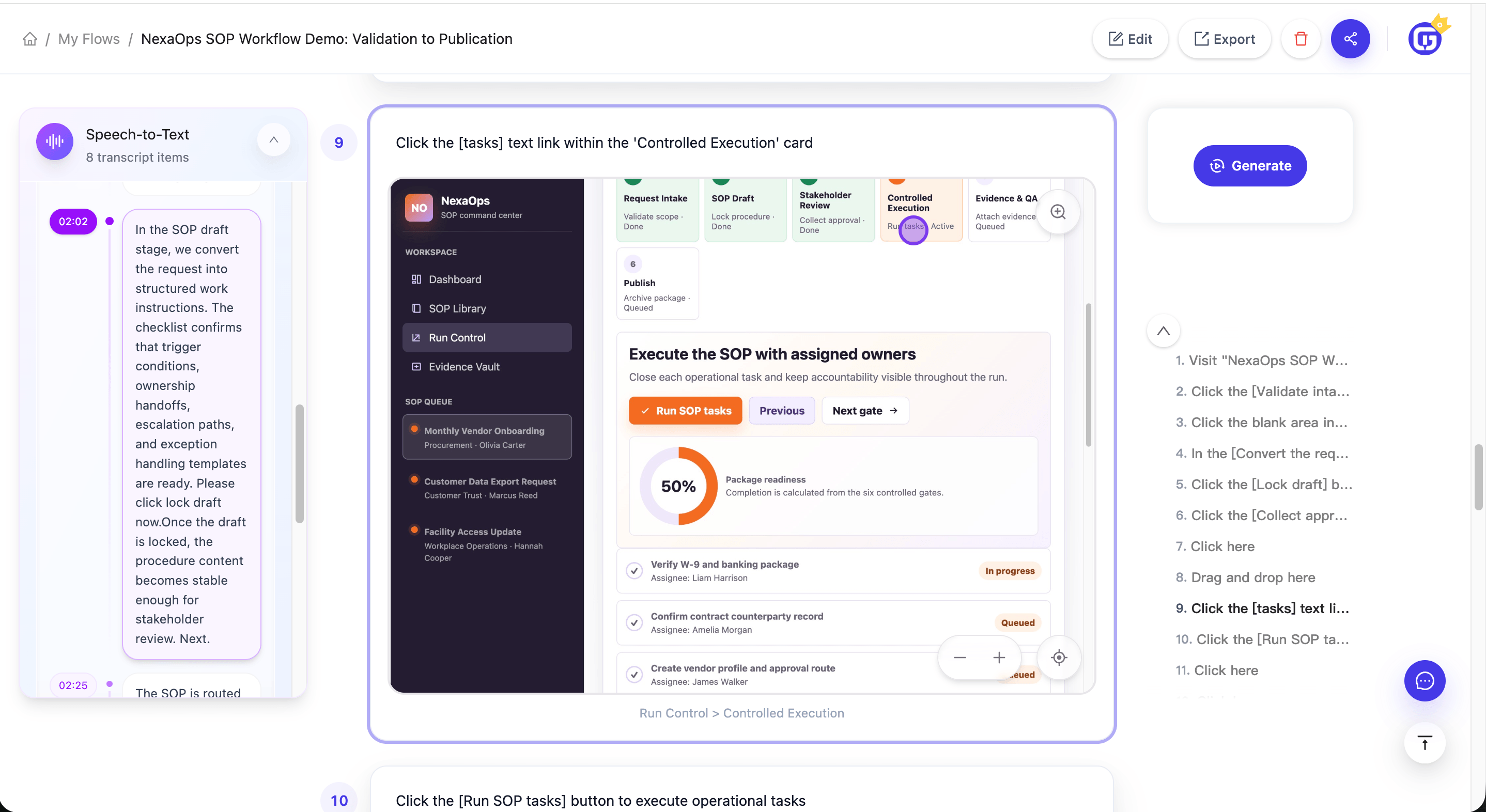
The Flow view keeps narration, step screenshots, AI-polished instructions, and the generated outline in one workspace. Review speech segments on the left, check the matching step content in the center, and use the outline on the right to navigate the Flow.
Transcript timeline
Recognized speech is saved by time segment, so each narration clip stays matched with the moment it was recorded.
AI-polished step preview
AI-generated titles and instructions are shown together with the matching step screenshot, making each polished result easy to review in context.
Generated outline and step titles
Auto-generated step titles and the Flow outline are shown on the right, so you can scan the structure and jump between steps quickly.
From capture to clearer workflow instructions
Narrate while capturing
Speech recognition turns your narration into time-aligned context, so the Flow keeps what was explained during each step.
Capture actions and screenshots
Clicks, drags, page position, cursor location, and screenshots stay connected with each step.
Polish with AI
AI uses the captured actions, screenshots, and narration context to turn rough step records into clearer instructions.
Where AI writing and speech recognition help most
No time to write while recording
Narrate during capture. iGenflow keeps your speech aligned with the right steps and screenshots for later polishing.
Raw actions are too brief
Turn simple records like “click here” into clearer instructions with the object, purpose, and result.
Docs need a consistent style
Keep training guides, help articles, and SOPs more consistent across different authors and teams.
Complex steps need context
Add conditions, exceptions, and business meaning beyond the captured action itself.
Match narration with step screenshots
Turn captured actions into clear instructions
Keep speech, screenshots, and AI writing in one Flow
Reduce follow-up writing after capture